

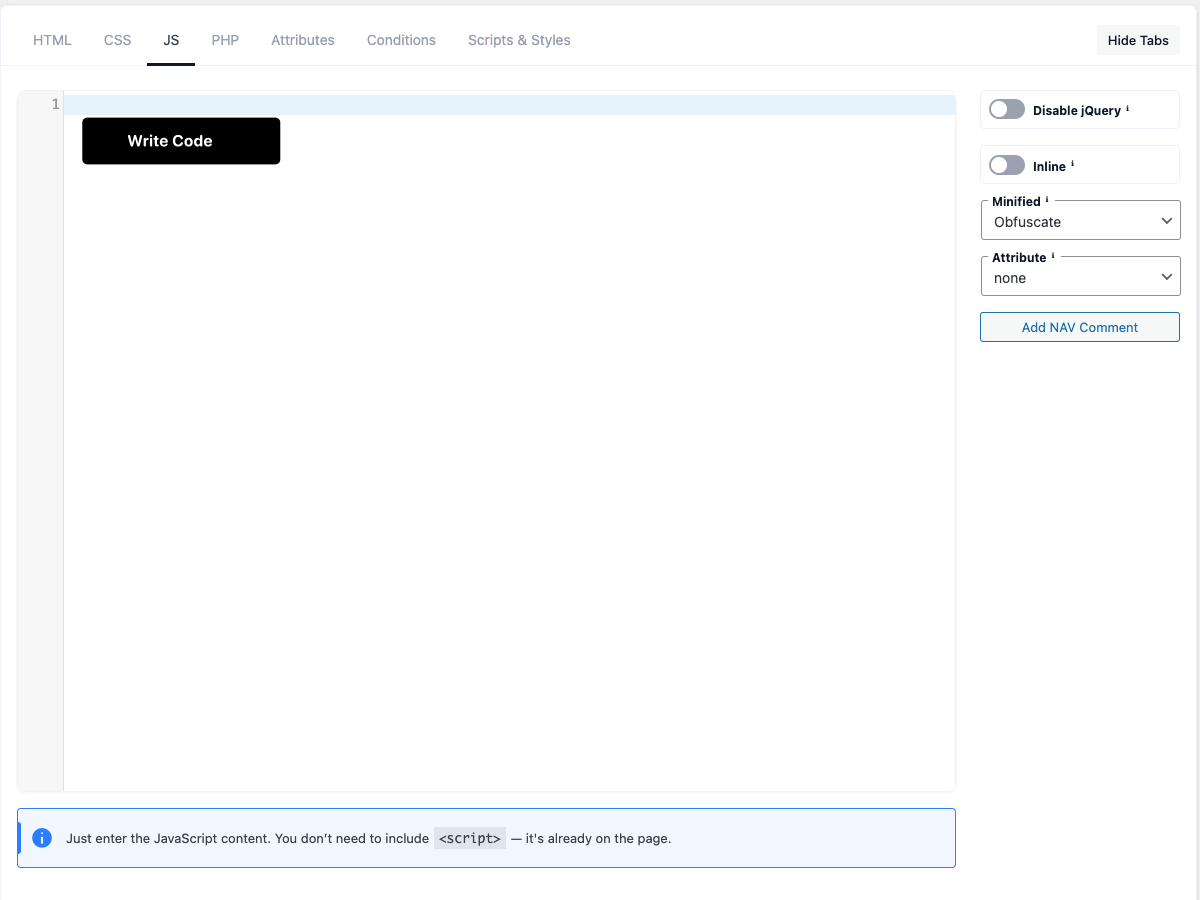
The JS tab is where you write the JavaScript for your snippet.
Tip: enter only the script body — you don’t need a
<script>wrapper.
Code editor
The JS area is a full code editor with syntax highlighting, line numbers and bracket matching.
Sidebar buttons insert text at your cursor.
Disable jQuery
By default the script loads jQuery first as a dependency. Turn this on to drop the jQuery dependency
when your script doesn’t need it.
Inline
Inserts the JavaScript directly into the page inside a <script> tag instead of loading a separate
file. ⚠ Attribute variables ({{$name}}) and Global Variables are replaced only in
Inline mode, and values are inserted in a JavaScript-safe (JSON-encoded) form.
Minified
Choose how the JavaScript is processed: None, Minify (compress only), or Obfuscate
(compress and obfuscate). The default is Obfuscate.
Attribute
Choose how the external script loads: none, defer, or async.
Combine
Merges this snippet’s JS into a single per-page file, loaded in the footer with defer and no jQuery
dependency.
⚠ Combine and Inline can’t both be on — turning on Combine switches Inline off. After enabling it,
re-save the post/page so the combined file is rebuilt.
Add NAV Comment
Inserts a // NAV: marker at your cursor. The editor turns these markers into a clickable outline
for quick navigation in long scripts.
JS Help & JS file URL
- JS Help opens a quick reference (no
<script>tags, the Combine/Inline rule) plus a table of
your snippet’s attribute variables. See Attributes. - JS File URL — once the snippet has saved JS, a read-only field shows the generated file URL.