
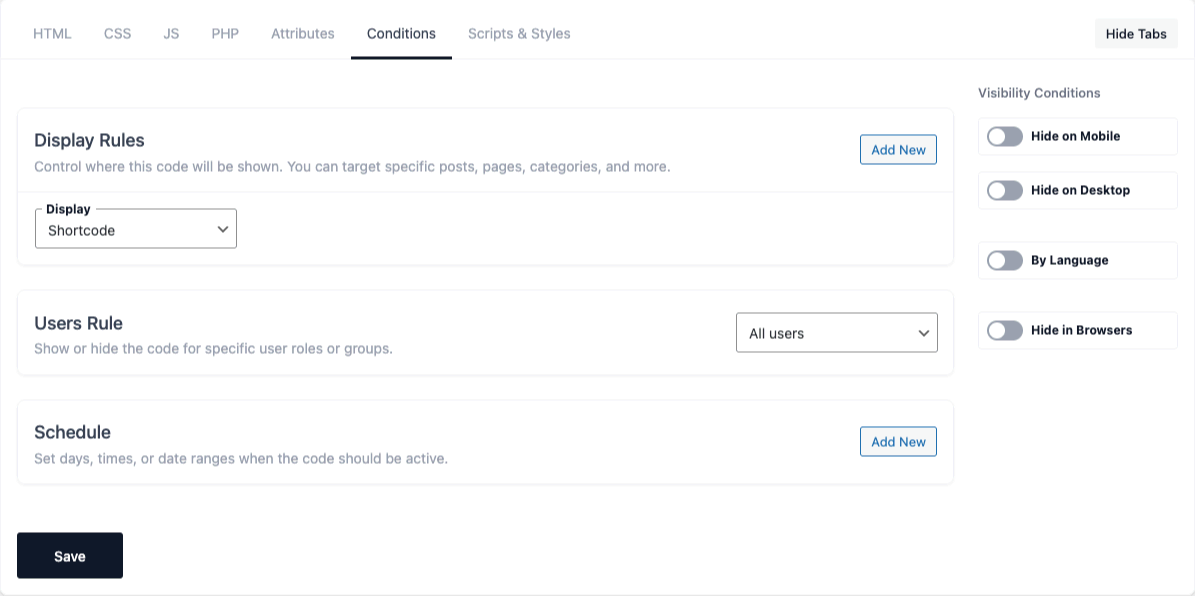
The Conditions tab controls where, when and to whom a snippet is shown.
How conditions combine
A snippet is shown only when all of the following are true:
- it is active,
- it matches at least one Display Rule (multiple rules are combined with OR),
- and every other enabled condition (Users, Schedule, Browsers, OS, Cookie, Referrer, URL,
Visitor, device, language) passes.
A condition category you leave empty/disabled simply passes.
⚠ Caching note: Cookie, Referrer, URL, Browser, OS, Schedule and Visitor conditions are checked
on every request and may not work correctly behind full-page caching, where the cached page is
served without re-checking them.
Display Rules
Where the snippet appears. Add New adds a rule; rules are combined with OR (the snippet shows if
any rule matches).
Each rule’s Display dropdown offers grouped locations:
- General —
Shortcode(output only via),Everywhere. - Posts — All posts, Selected posts (by ID), Post category (by ID).
- Pages — All pages, Selected pages (by ID), Page type.
- Archives — All Archives, All Categories, All Tags, All Authors, All Dates, plus specific
Category / Tag / Author by ID. - Custom Post: … — for each public custom post type: All, Selected, taxonomy, and archive.
The is / is not operator inverts the match. Enter ID’s takes a comma-separated list.
Page type lists conditional options (front page, blog home, search, 404, archive) plus your
registered page templates.
⚠ If you define no Display Rule, the snippet becomes shortcode-only — it isn’t auto-injected
anywhere and only renders where you place .
Users Rule
Choose who sees the snippet: All users, Authorized Users (logged in), or Unauthorized
Users (logged out). For Authorized Users, you can also require at least one of the ticked roles.
Schedule
Show the snippet on a schedule. Add New adds a row; rows are combined with OR. Times use your
site’s timezone. Each row matches when all of:
- Weekday — Everyday or a specific day,
- Time — current time is within Start … End,
- Dates (optional) — current date is within Date From … Date To.
⚠ Each row needs both a start and end time to match — a row with empty times never matches. For a
full-day window use 00:00–23:59.
Browsers
A hide list: the snippet is hidden in the browsers you tick and shown in all others. Buckets:
Opera, Edge, Chrome, Safari, Firefox, IE, Other. ⚠ Browser detection is best-effort.
Operating Systems
The opposite of Browsers — a show-only list: when enabled, the snippet shows only on the
operating systems you tick and is hidden everywhere else. Options: Windows, macOS, Linux, Android,
iOS, ChromeOS, Other.
Cookie
Show or hide based on a cookie. Operators:
| Operator | Passes when |
|---|---|
| Exists | the cookie is present |
| Does not exist | the cookie is absent |
| Equals | present and the value matches |
| Does not equal | absent or the value differs |
| Contains | present and the value contains your text |
⚠ With an empty Cookie Name the condition does nothing (passes). Leave Cookie Value empty to
check existence only.
Referrer
Show or hide based on the referring URL. Operators: Contains, Does not contain, Equals, Starts with.
An empty Referrer URL makes the condition pass.
URL
Show or hide based on the current URL path. Operators: Contains, Does not contain, Equals, Starts
with, Matches regex. Example values: /shop/, ?utm_source=google. ⚠ An invalid regex simply never
matches.
Visitor
Show only to New visitors (first visit) or Returning visitors. This uses a marker cookie, so
it’s unreliable behind full-page caching.
Hide on Mobile / Hide on Desktop
Sidebar toggles to hide the snippet on mobile or on desktop. Enabling both hides it everywhere.
⚠ Tablets are treated as mobile.
By Language
Show the snippet only when the site language matches the one you choose. If the toggle is off or
no language is selected, the condition passes.