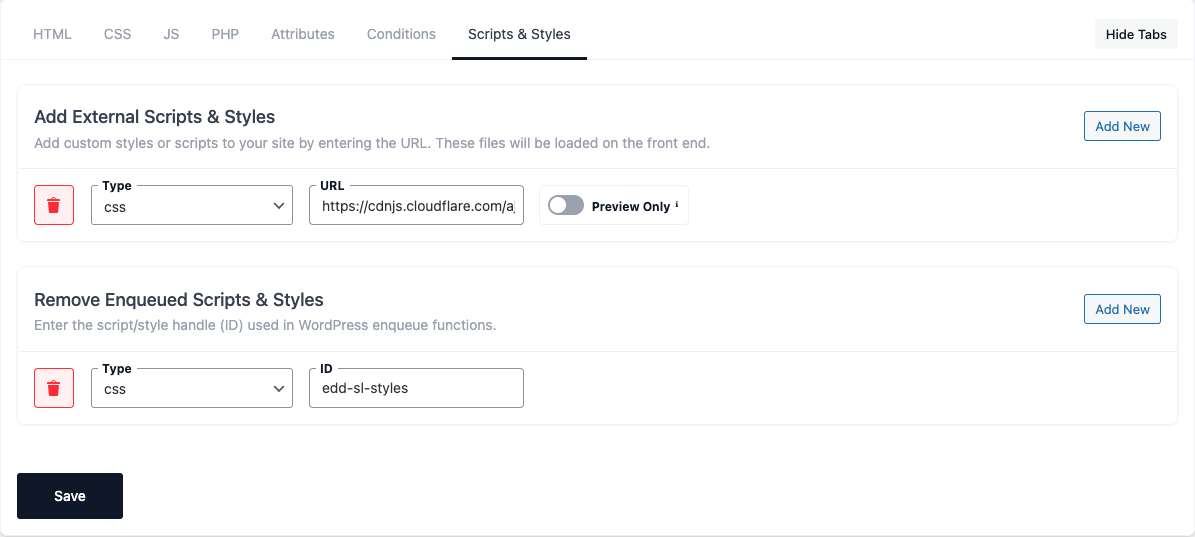
The Scripts & Styles tab does two things: add external CSS/JS files by URL, and remove
other plugins’ or your theme’s assets. These settings apply only while the snippet is active on a
page (via shortcode, a Display Rule, or a custom template).
Add External Scripts & Styles
Add CSS or JS files by URL; they load on the front end alongside your snippet. Add New adds a
row, the trash icon removes one. Each row has a Type (CSS or JS), a URL, and type-specific
options:
CSS rows
- Media — the stylesheet’s media attribute:
all,screen, orprint(e.g.printfor
print-only styles). - Preview Only — when on, the file loads only in the editor’s Live Preview and is not loaded
on the live site.
JS rows
- Attribute —
none,defer, orasync. - Position —
footer(recommended) orheader. - jQuery — when on, loads the file after jQuery.
⚠ This tab is for external file URLs only — it doesn’t run the code you write in the other tabs.
Use it to pull in third-party libraries (a CDN script, an external stylesheet, etc.) alongside the
snippet.
Remove Enqueued Scripts & Styles
Remove an asset another plugin or your theme added, by its registered handle (ID). Each row:
- Type — CSS or JS.
- ID — the handle used to register the asset.
- Deregister — when on, fully removes the handle (not just hides it) so it can’t be re-added by
a dependency.
Rows with an empty ID are skipped.
⚠ Scope: the removal only happens on pages where the snippet is actually present — it doesn’t
remove handles globally.
⚠ Timing: an asset added very late (or printed directly rather than through the normal enqueue
system) may not be removable here. For handles re-added by dependencies, use Deregister.