
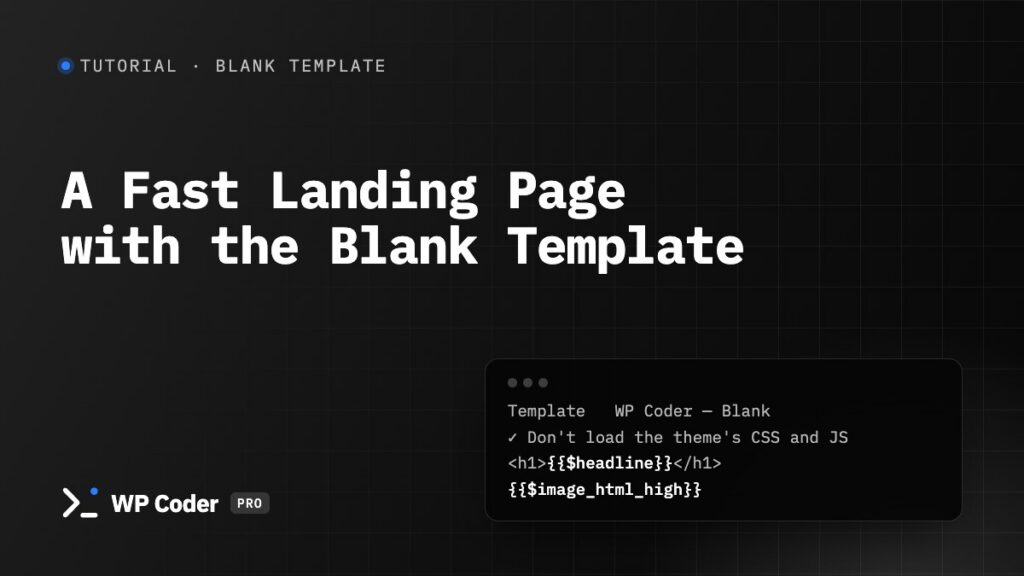
Campaign pages work best without the site’s navigation and sidebars — and load faster without the theme’s CSS and JS. The Blank Template gives you exactly that, while the page stays a normal WordPress page your team can edit.
You’ll use: Blank Template, Attributes, Scripts & Styles, the WP Coder Snippet block.
Time: 20 minutes.
Step 1. Switch on the Blank Template#
Tools → Content & Templates → Blank Template, and tick:
- Don’t load the theme’s CSS and JS — skips every stylesheet and script from the theme’s folder; WordPress core, other plugins and your snippets still load.
- Don’t load global styles — if you use a block theme and want a completely clean page.
Save.
Step 2. A hero section snippet#
New snippet LP Hero. Attributes:
| Name | Type | Default |
|---|---|---|
headline |
Text (single line) | Launch your store this weekend |
subline |
Textarea (multi-line) | Everything you need, nothing you don’t. |
cta_text |
Text (single line) | Start free trial |
cta_link |
URL / link | /signup/ |
image |
Image (with preload) |
Note the names: id and title are reserved by the shortcode, so the heading field is called headline.
HTML
<header class="lp-hero">
  <div class="lp-hero__text">
    <h1>{{$headline}}</h1>
    <p>{{$subline}}</p>
    <a class="lp-btn" href="{{$cta_link}}">{{$cta_text}}</a>
  </div>
  <div class="lp-hero__media">{{$image_html_high}}</div>
</header>
{{$image_html_high}} prints the image with fetchpriority="high", and the with preload type adds a <link rel="preload"> — the hero image is the first thing the browser fetches.
Step 3. Bring your own base styles and font#
Without the theme’s CSS you start from browser defaults. In the same snippet:
Scripts & Styles → Load scripts and styles → Add file: Type CSS (stylesheet), URL of your font, e.g.
https://fonts.googleapis.com/css2?family=Inter:wght@400;600;800&display=swapCSS
*, *::before, *::after { box-sizing: border-box; }
body { margin: 0; font-family: Inter, system-ui, sans-serif; color: #0f172a; line-height: 1.6; }
img { max-width: 100%; height: auto; }
.lp-hero {
  display: grid;
  grid-template-columns: 1.1fr 1fr;
  gap: 48px;
  align-items: center;
  max-width: 1200px;
  margin: 0 auto;
  padding: 96px 24px;
}
.lp-hero h1 { font-size: clamp(2.2rem, 4vw, 3.6rem); line-height: 1.1; margin: 0 0 16px; }
.lp-hero p { font-size: 1.2rem; color: #475569; margin: 0 0 28px; }
.lp-btn { display: inline-block; padding: 14px 24px; border-radius: 10px; background: #2563eb; color: #fff; font-weight: 600; text-decoration: none; }
@media (max-width: 48rem) { .lp-hero { grid-template-columns: 1fr; padding-block: 56px; } }
Save without Display Rules.
Put shared base styles (reset, font, buttons) in the first section snippet, or in a separate LP Base snippet placed once at the top of the page.
Step 4. Build the page#
- Pages → Add New, title Spring launch.
- In the page settings, Template → WP Coder — Blank. The editor shows the page full width.
- Add the WP Coder Snippet block → LP Hero → fill in the fields.
- Add more sections the same way — features, testimonials, pricing (pricing card tutorial), FAQ.
- Publish.
Step 5. Check what loads#
Open the page and view its source: no theme header, footer or theme stylesheets — only WordPress core files, other plugins’ assets, your snippets’ CSS/JS and the font. Run it through PageSpeed Insights and compare with a normal page.
Tips#
- Need one theme file back? Add its URL as a row in the snippet’s Scripts & Styles — files added there load even with the theme’s CSS switched off.
- Hide a section while you work on it: the block’s Hide from visitors switch keeps it visible to you only.
- Reuse the sections on the next campaign — the same snippets, new block values.