
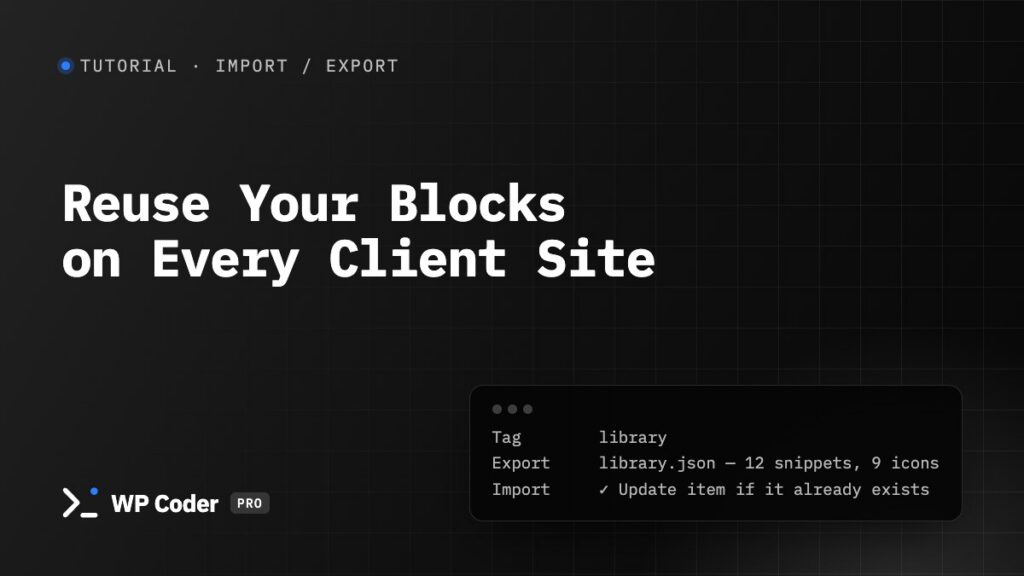
If you build sites for clients, you rebuild the same things every time: a hero, a pricing card, an FAQ, a team grid, the same dozen tweaks. Keep them as a library and set up a new site in minutes.
You’ll use: tags, Import / Export, Icons PRO. The workflow works with the free WP Coder too; icons, Global Variables and importing several files at once are WP Coder Pro.
Time: 10 minutes per new site.
Step 1. Tag your library#
In each reusable snippet, add the tag library in the sidebar (a snippet can have several tags: library, hero). Give each a clear title and a note — what it is and which fields it has. In All Codes, click the tag to see the whole library.
Make library snippets shortcode-only (Display: Shortcode or block only) and neutral: colours and fonts in attributes or Global Variables (Pro), not hard-coded client names.
Step 2. Export the library#
WP Coder → Import / Export → Export Settings, choose the tag library in Filter by tag, and click Export Data. You get one .json file with all those snippets — in Pro also every library icon their code uses ({{svg.…}}).
Step 3. Export your favourite settings#
On the same page, Export Snippets & Tools settings → tick Snippets and Tools → export. This file holds which snippets of the Snippets library and which Tools you switch on, with their options — e.g. Disable XML-RPC, Duplicate Posts, Limit Login Attempts, QuickCode and Loop Logic on. API keys are never included.
Step 4. Set up the new site#
On the client site, with WP Coder installed (or WP Coder Pro installed and licensed):
- Import / Export → Import Settings.
- Choose both files at once (hold Ctrl/Cmd in the file dialog) PRO — in the free plugin, import them one after the other.
- Leave Update item if item already exists off for a fresh site.
- Import Settings. The notice reports the snippets added, icons imported and settings applied.
Snippets keep their IDs where they’re free, so shortcodes in your page templates keep working.
Step 5. Adjust for the client#
- Set the client’s values in Tools → Content & Templates → Global Variables PRO (
phone,brand_color…), if your snippets use{{global.*}}. - Check All Codes: imported snippets keep the on/off state they had.
- Add the blocks to pages and fill in the fields.
Keeping sites up to date#
Improved a library snippet? Export it again and import on a client site with “Update item if item already exists” ticked — the snippet with the same ID is overwritten. With Revision History on (Pro), the old version is kept as a revision.
“Update” matches by ID. It replaces the right snippet only on sites set up from your library export. On other sites, import without the option and compare.
Tips#
- Keep a private “library” WordPress install as the single source of truth.
- Store export files like source code — they contain your PHP.
- Global PHP isn’t exported; prefer snippets with Include PHP → Run everywhere for code you want to move.