
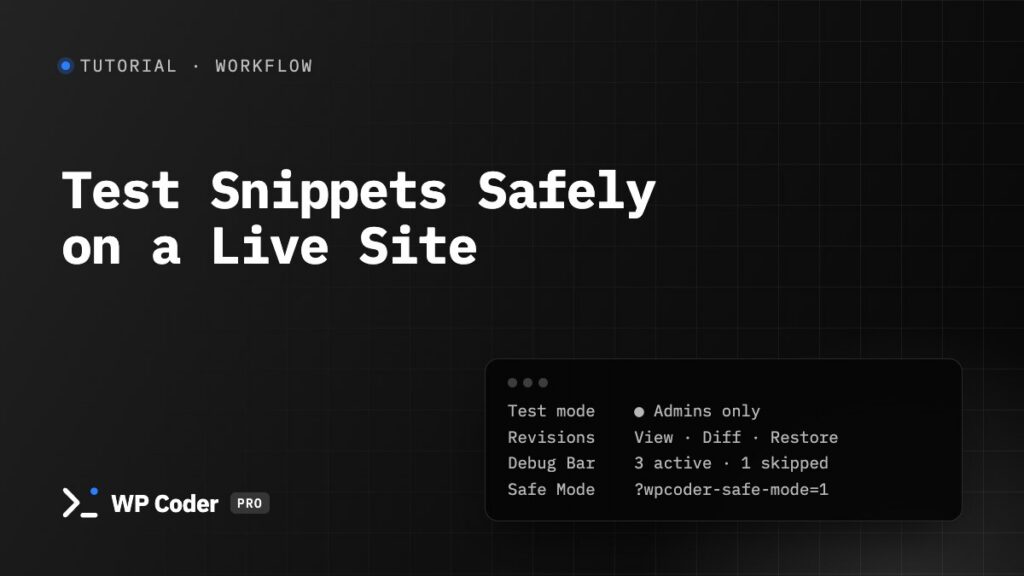
Sometimes you have to change code on a live site. WP Coder gives you a safety net — Test mode, caught errors and Safe Mode in both plugins, plus revisions, the Debug Bar and test users in WP Coder Pro. This tutorial shows how to use it as one workflow.
You’ll use: Test mode, Developer Tools, Debug Log, PHP Errors & Safe Mode.
Time: 10 minutes to set up, seconds to use every day.
Step 1. Switch on the safety tools (once) PRO#
Tools → Developer:
- Revision History — every save keeps the previous version. Set the limit (10 is fine).
- WP Coder Debug Bar — shows which snippets ran on a page and why others didn’t.
- Test Users — browse as another role without changing yours.
Save.
Step 2. Write in Test mode#
Open the snippet (or create a new one) and switch on Test mode in the sidebar before you save. From now on:
- Administrators see and run the snippet — you can check it on the real site, with real content.
- Everyone else sees the site as before.
- PHP set to run in the admin, front end or everywhere also runs only for administrators.
In All Codes the snippet shows as Admins only.
Step 3. Check it#
- Open the page. The Debug Bar PRO lists the snippet as active — or skipped with the reason (a condition, a missing rule).
- Need to see what a customer sees? Test User Role PRO in the admin bar → Customer. Your real role doesn’t change, and the menu stays so you can switch back. While the snippet is in Test mode, a simulated role isn’t an administrator, so you see the page without it — exactly what customers see now. To check the snippet itself as a customer, do it after Step 4.
- Using PHP? Turn on and open Debug Log. Notices and warnings from your code show up there; in Pro, failures of a snippet are also listed under Errors caught in snippets.
Step 4. Go live#
Switch Test mode off and save. Visitors see the snippet now. WP Coder Pro purges common page caches automatically; with the free plugin, purge your cache yourself.
Step 5. Something’s wrong? Roll back PRO#
Open the snippet → Revisions → Diff to see what changed, then Restore. The current state is saved first, so even the restore can be undone.
When the site goes down#
A PHP mistake in a snippet won’t take the site down for long:
- Ordinary errors are caught — the snippet’s PHP output is replaced with an HTML comment, the rest of the page works, and the error is logged (in Pro you also get an admin notice).
- An uncatchable fatal (out of memory, timeout) fails the page once; WP Coder then switches that snippet off automatically. Reload, read the notice, fix the code.
- Still locked out? Log in and add
?wpcoder-safe-mode=1to the admin URL — no snippet PHP runs for you until you exit Safe Mode. - Even the login page fails? Add
define( 'WPCODER_SAFE_MODE', true );towp-config.php, fix the snippet, then remove the line.
Habits that help#
- One change, one save — small revisions are easy to compare and restore. PRO
- Tag work in progress (
wip) and filter All Codes by it before you finish for the day. - Write a note in the sidebar: what the snippet does and why. You’ll thank yourself in a year.
- Export before big changes — All Codes → select → Export gives you a file you can import back.