
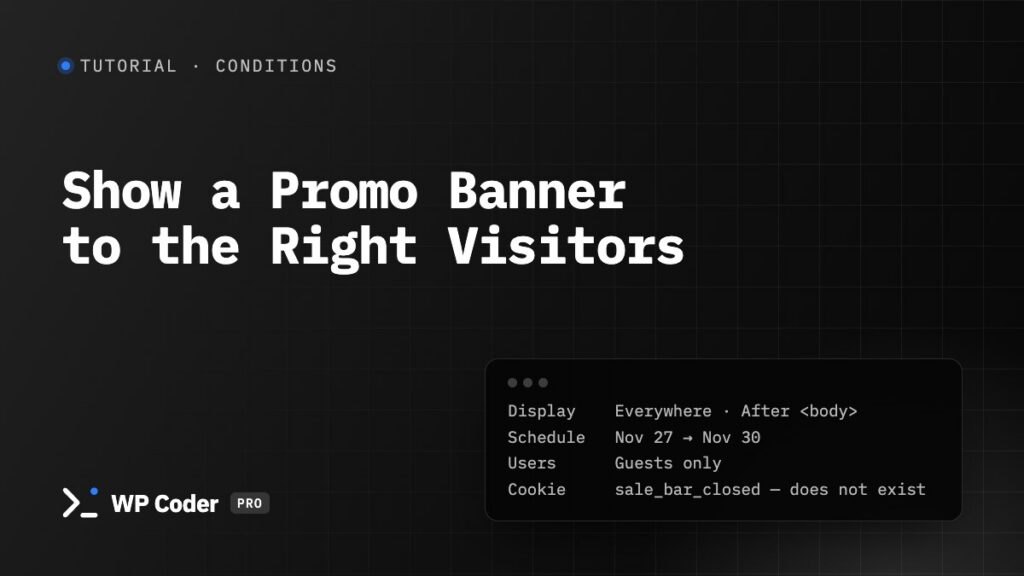
A sale banner should appear at the right time to the right people and go away when they close it. In this tutorial you build a top bar that:
- appears only during the sale dates,
- is shown only to visitors who aren’t logged in (customers already know),
- disappears for a week once the visitor closes it,
- uses a promo code you can change in one place.
You’ll use: Conditions (Location, Schedule, Users, Cookie) and Global Variables.
Time: 10 minutes.
Step 1. Store the promo code once#
Tools → Content & Templates → Global Variables, switch it on and add:
promo=BLACKFRIDAY30Save. You can now print {{global.promo}} in any snippet — and change it later in one place.
Step 2. Create the snippet#
New snippet, Sale bar.
HTML
<div class="sale-bar" role="region" aria-label="Sale">
  <p>Black Friday: <strong>30% off</strong> all plans with code <code>{{global.promo}}</code> · <a href="/pricing/">See plans</a></p>
  <button class="sale-bar__close" type="button" aria-label="Close">×</button>
</div>
CSS
.sale-bar {
  position: relative;
  padding: 10px 48px;
  background: #111827;
  color: #fff;
  text-align: center;
  font-size: 15px;
}
.sale-bar p { margin: 0; }
.sale-bar a { color: #93c5fd; }
.sale-bar code { padding: 1px 6px; border-radius: 4px; background: #374151; }
.sale-bar__close {
  position: absolute;
  inset-block-start: 50%;
  inset-inline-end: 12px;
  translate: 0 -50%;
  border: 0;
  background: none;
  color: #fff;
  font-size: 22px;
  cursor: pointer;
}
JS
(function () {
  var bar = document.querySelector('.sale-bar');
  if (!bar) return;
  // Hide at once if the visitor closed it before (also works on cached pages).
  if (document.cookie.indexOf('sale_bar_closed=1') !== -1) { bar.remove(); return; }
  bar.querySelector('.sale-bar__close').addEventListener('click', function () {
    bar.remove();
    document.cookie = 'sale_bar_closed=1; path=/; max-age=' + 60 * 60 * 24 * 7 + '; SameSite=Lax';
  });
})();
Step 3. Where: everywhere, at the top#
Conditions → Display Rules: Display Everywhere, Location: After <body> opens.
Step 4. When: during the sale#
Add condition → Schedule → Add New: Weekday Everyday, leave the times empty (whole day), tick Define Dates and set Date From 2026-11-27 and Date To 2026-11-30. Dates use your site’s timezone (Settings → General).
Step 5. Who: guests only#
Add condition → Users, then in the Users Rule card choose Unauthorized Users.
Step 6. Until they close it#
Add condition → Cookie: Cookie Name sale_bar_closed, Condition Does not exist.
The summary at the top of the Conditions tab now reads like your plan. Save.
Step 7. Test it#
- To check it before the sale while visitors can’t see it: switch on Test mode, temporarily set the Users Rule to All users and untick Define Dates (or set Date From to today). Then only administrators see the bar.
- When it looks right, restore Unauthorized Users and the sale dates, switch Test mode off, and check in a private window (as a guest) on a sale day.
- Close the bar and reload: it stays hidden.
Caching#
Schedule and Cookie are decided on the server, per visitor. If your site uses a full-page cache, the cached copy may show the bar to a visitor who closed it — that’s why the JavaScript also removes the bar when the cookie is set. Purge the page cache when the sale starts and ends (WP Coder purges common caches when you save the snippet).
Variations#
- Mobile only: Add condition → Device → Hide on Desktop.
- Only for visitors from your newsletter: Add condition → URL → Contains
utm_source=newsletter, or Referrer → Containsmail.. - Different text per language: with QuickCode on,
{{language.en_US}}…{{/language}}{{language.de_DE}}…{{/language}}.