
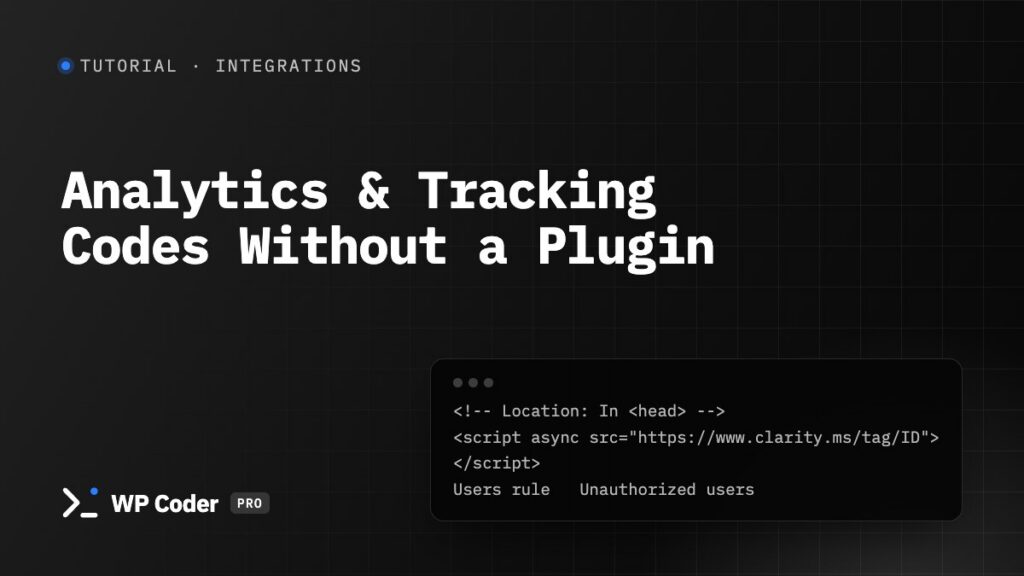
Every tracking service gives you a snippet “to paste before </head>“. Instead of a plugin per service — or editing the theme, where the code is lost on the next theme update — put them in WP Coder — everything here except the Users and Cookie conditions works in the free plugin too.
You’ll use: Integrations, Conditions (Location, Users, Cookie).
Time: 10 minutes.
Part 1. Google Analytics or Tag Manager — built in#
- Go to WP Coder → Tools → Integrations.
- Switch on Tracking Code Manager and enter your GA4 ID (
G-XXXXXXXXXX) in the Google Analytics field — or switch on Google Tag Manager and enter the Container ID (GTM-XXXXXXX). Use one or the other: if GA is loaded through GTM, leave the GA field empty, or page views count twice. - Tick Administrator and Editor in the role list of the tool you use — Disable tracking for these user roles (Tracking Code Manager) or Disable Google Tag Manager for these user roles. Your own visits stay out of the reports.
- Save.
Facebook Pixel, Pinterest and AdSense work the same way on that tab.
Part 2. Any other service — a snippet in the head#
Microsoft Clarity as an example (Hotjar, Plausible, a chat widget — the same steps):
- Create a snippet Clarity.
- Paste the vendor’s code into the HTML tab as it is:
<script type="text/javascript"> (function(c,l,a,r,i,t,y){ c[a]=c[a]||function(){(c[a].q=c[a].q||[]).push(arguments)}; t=l.createElement(r);t.async=1;t.src="https://www.clarity.ms/tag/"+i; y=l.getElementsByTagName(r)[0];y.parentNode.insertBefore(t,y); })(window, document, "clarity", "script", "YOUR_PROJECT_ID"); </script> - Conditions tab: Display Everywhere, Location: In
<head>. - Add condition → Users PRO, then in the Users Rule card choose Unauthorized Users — only visitors who aren’t logged in are recorded.
- Save.
Why the HTML tab and not the JS tab? Vendor snippets come with their own
<script>tag and expect to sit in the head exactly as given. The JS tab is for your own code without tags.
Part 3. A site-verification meta tag#
Google Search Console, Bing, Pinterest and Facebook domain verification all ask for a <meta> tag:
- Snippet Site verification, HTML:
<meta name="google-site-verification" content="your-code" /> <meta name="msvalidate.01" content="your-code" /> - Display Everywhere, Location: In
<head>. Save.
Open the page source (Ctrl/Cmd + U) and search for the tag to check.
Part 4. Only after cookie consent PRO#
In the EU you may need consent before loading analytics. Most consent tools set a cookie when the visitor agrees. With that cookie name you can load a snippet only after consent:
- Add condition → Cookie: Cookie Name
cookie_consent(your tool’s name), Condition Contains, Cookie Valueanalytics.
The snippet now loads only for visitors who accepted. For the built-in Integrations, which have no cookie condition, move the code into a snippet like in Part 2.
Cached sites: the Cookie condition is checked on the server. With a full-page cache, exclude the cookie from caching or let your consent tool load the scripts — see the caching note in Conditions.
Staging and local copies#
A copy of the site carries these snippets and settings — and sends its traffic to your live analytics. On staging, switch the snippets off in All Codes (tick them → Switch off, Deactivate in the free plugin) and the Integrations tool off.